

Slack
All you need is a Signing Secret and a Bot Token to connect your Slack bot to nexu.
Step 1: Create a Slack app
- Click the link below to create a pre-configured Slack app using a manifest (permissions, events, and bot settings are all set up automatically):
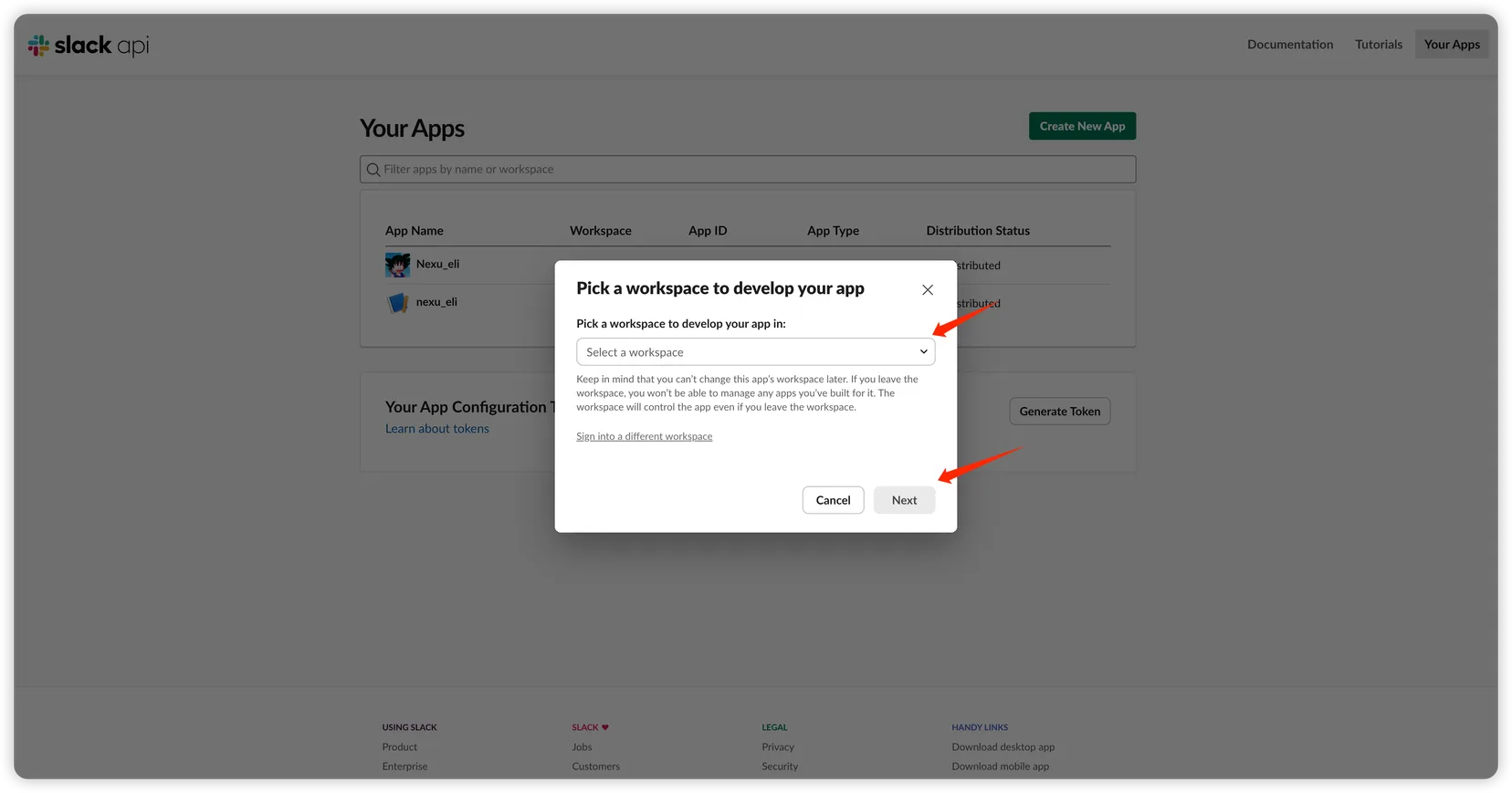
- Select the Workspace to install to and click "Next".
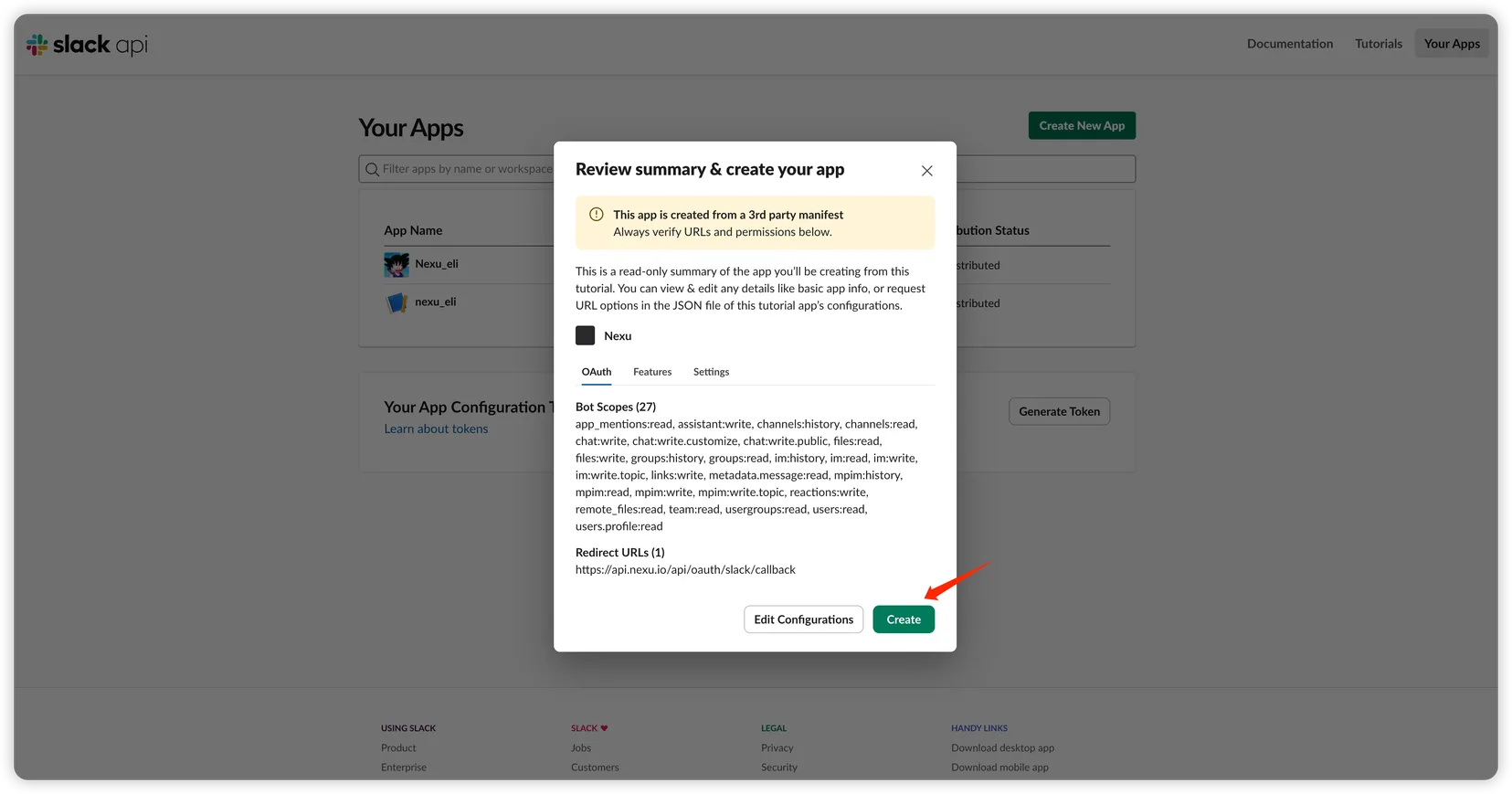
- Review the pre-configured permissions and URLs, then click "Create".
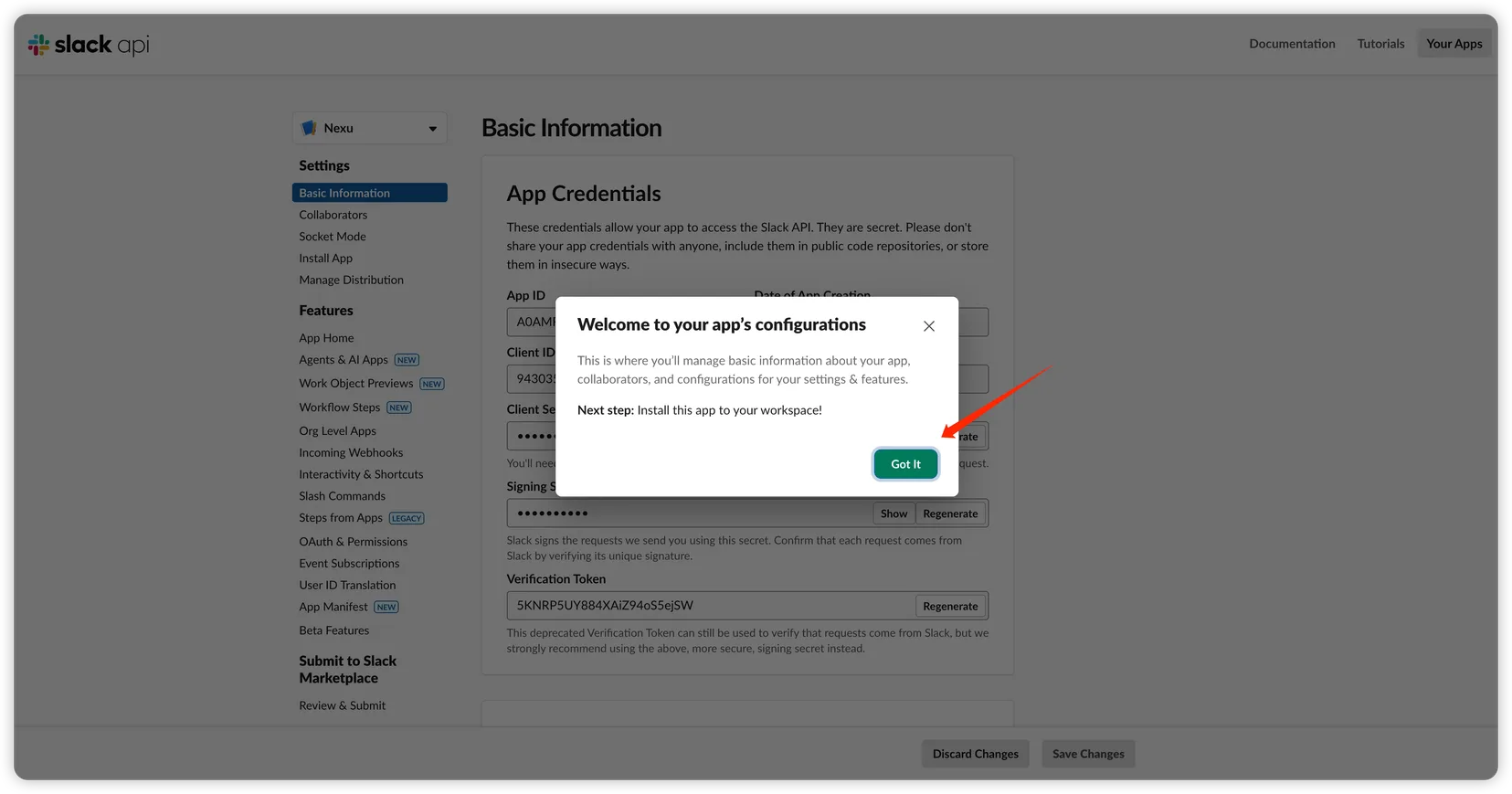
- Once created, click "Got It".
Step 2: Get the Signing Secret
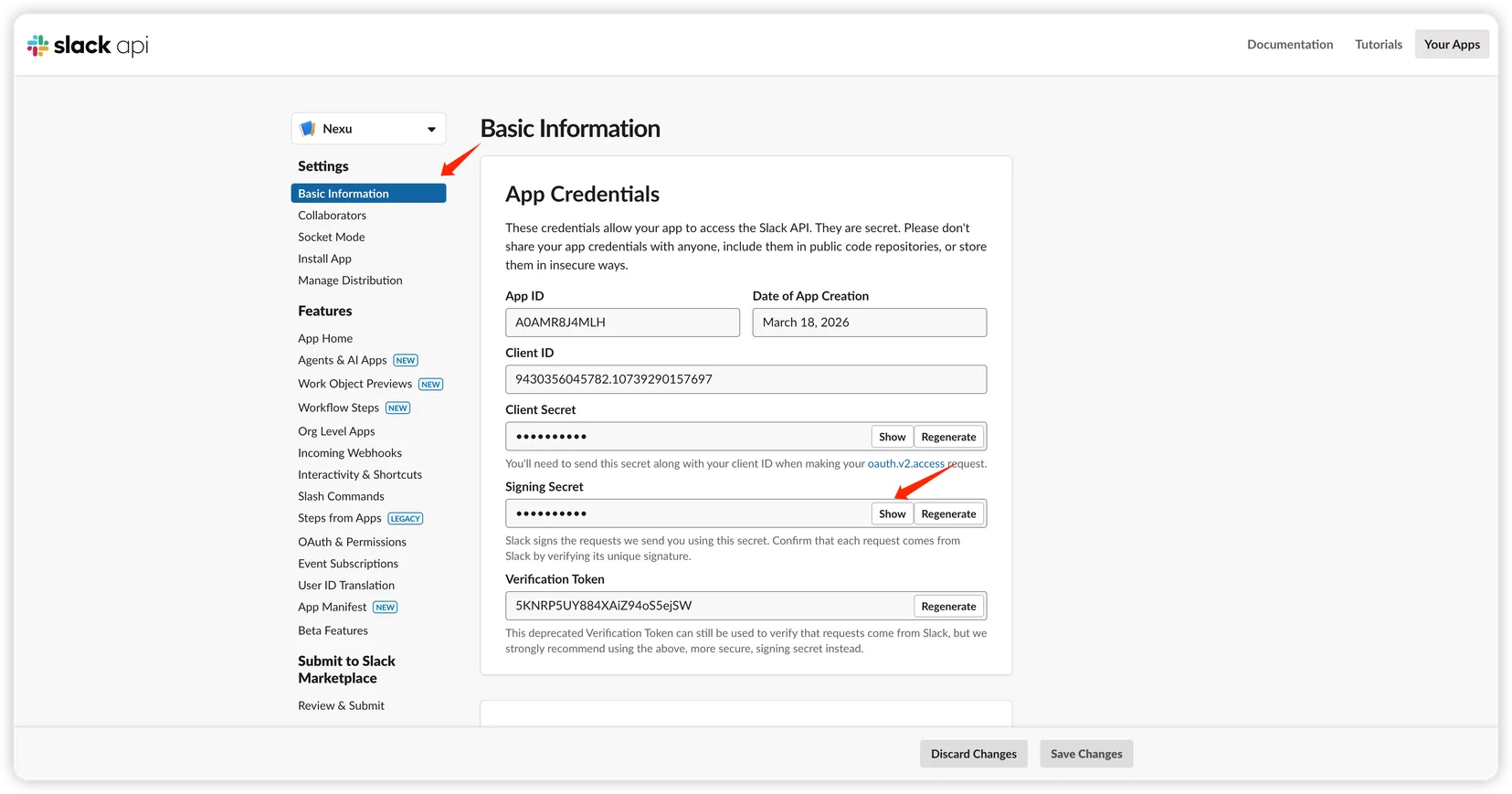
Go to "Basic Information" → "App Credentials" and copy:
- Signing Secret
Step 3: Get the Bot Token
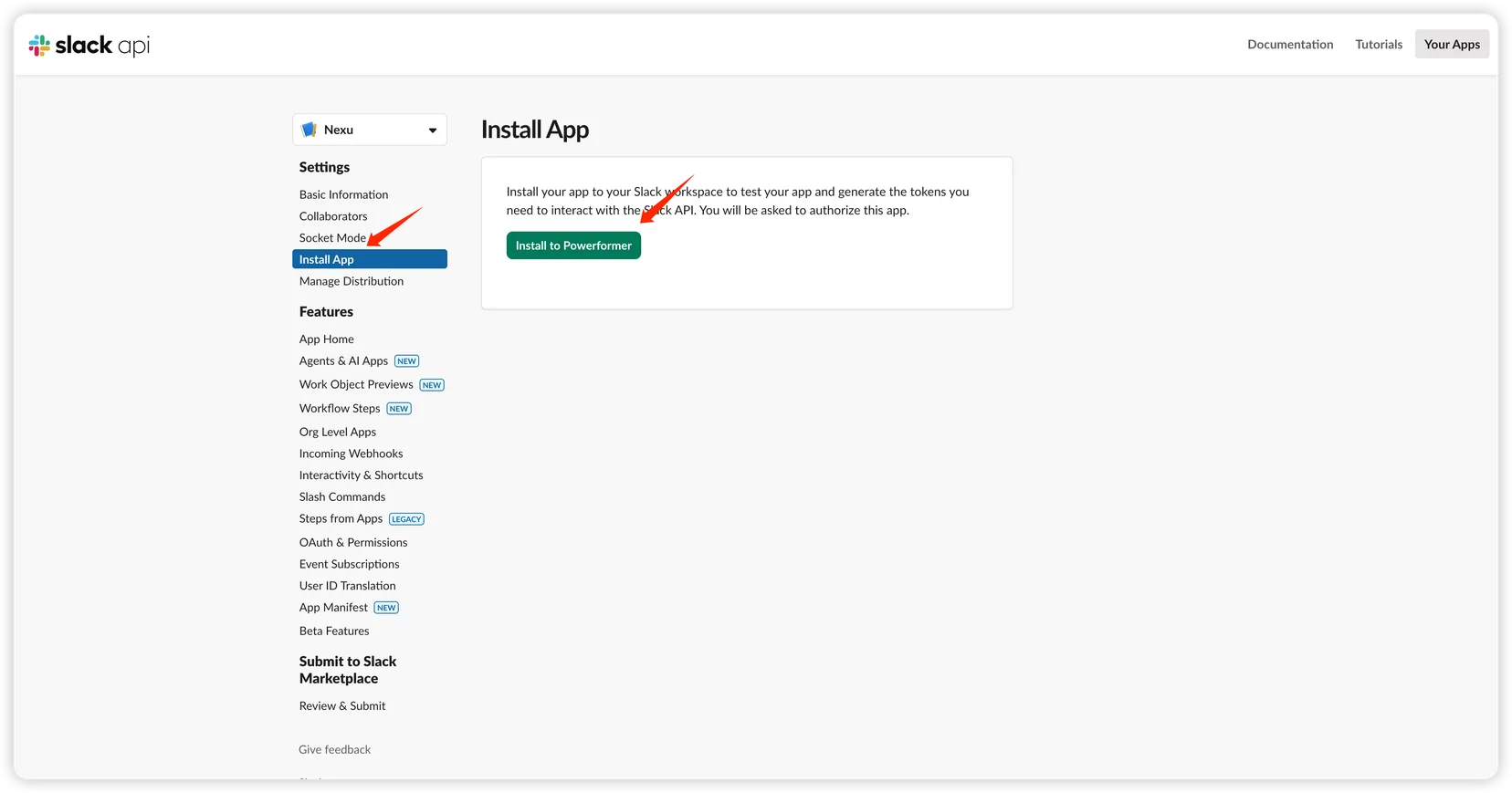
- In the sidebar, go to "Install App" and click "Install to Workspace".
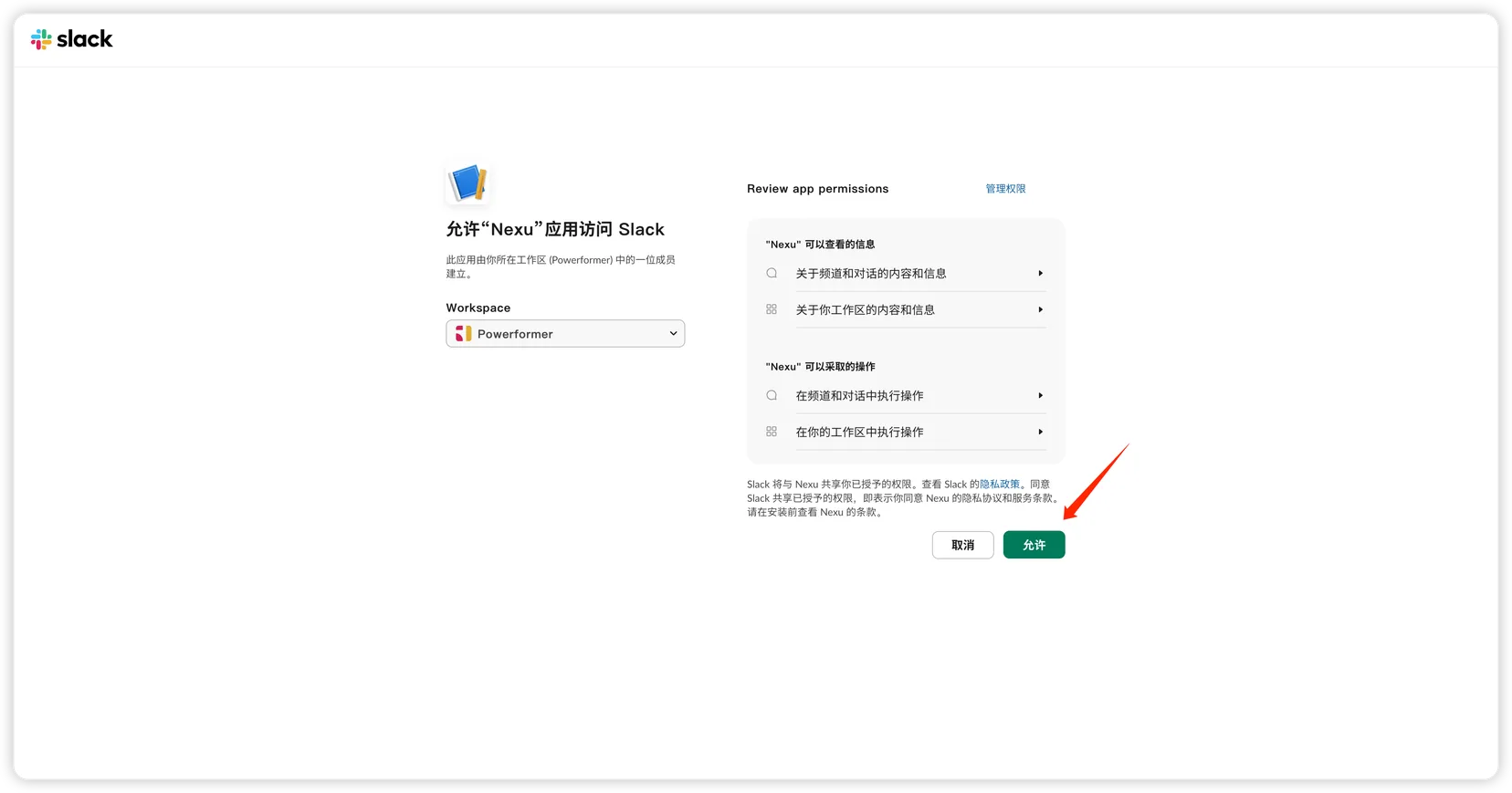
- On the authorization page, click "Allow".
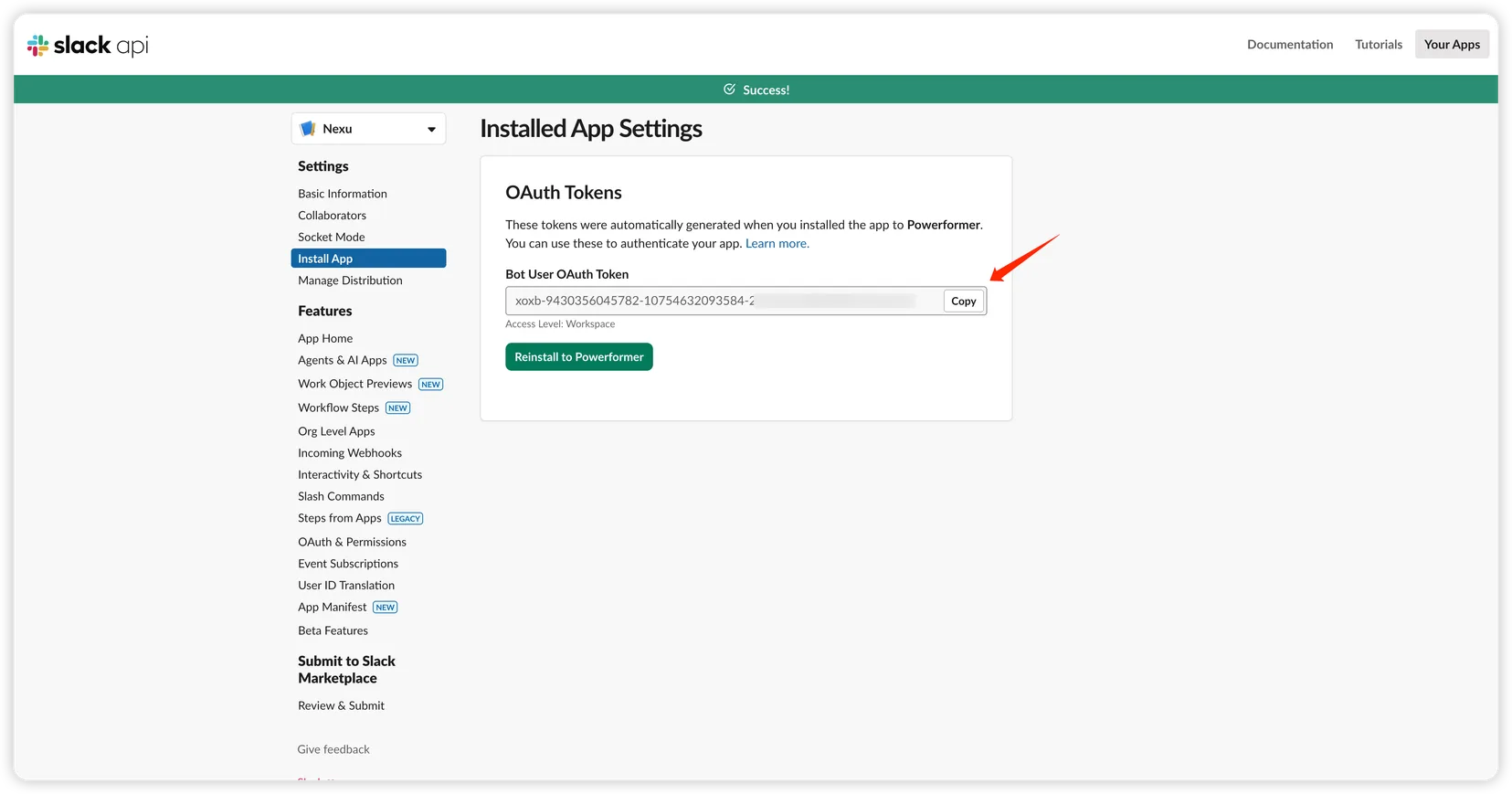
- Copy and save:
- Bot User OAuth Token
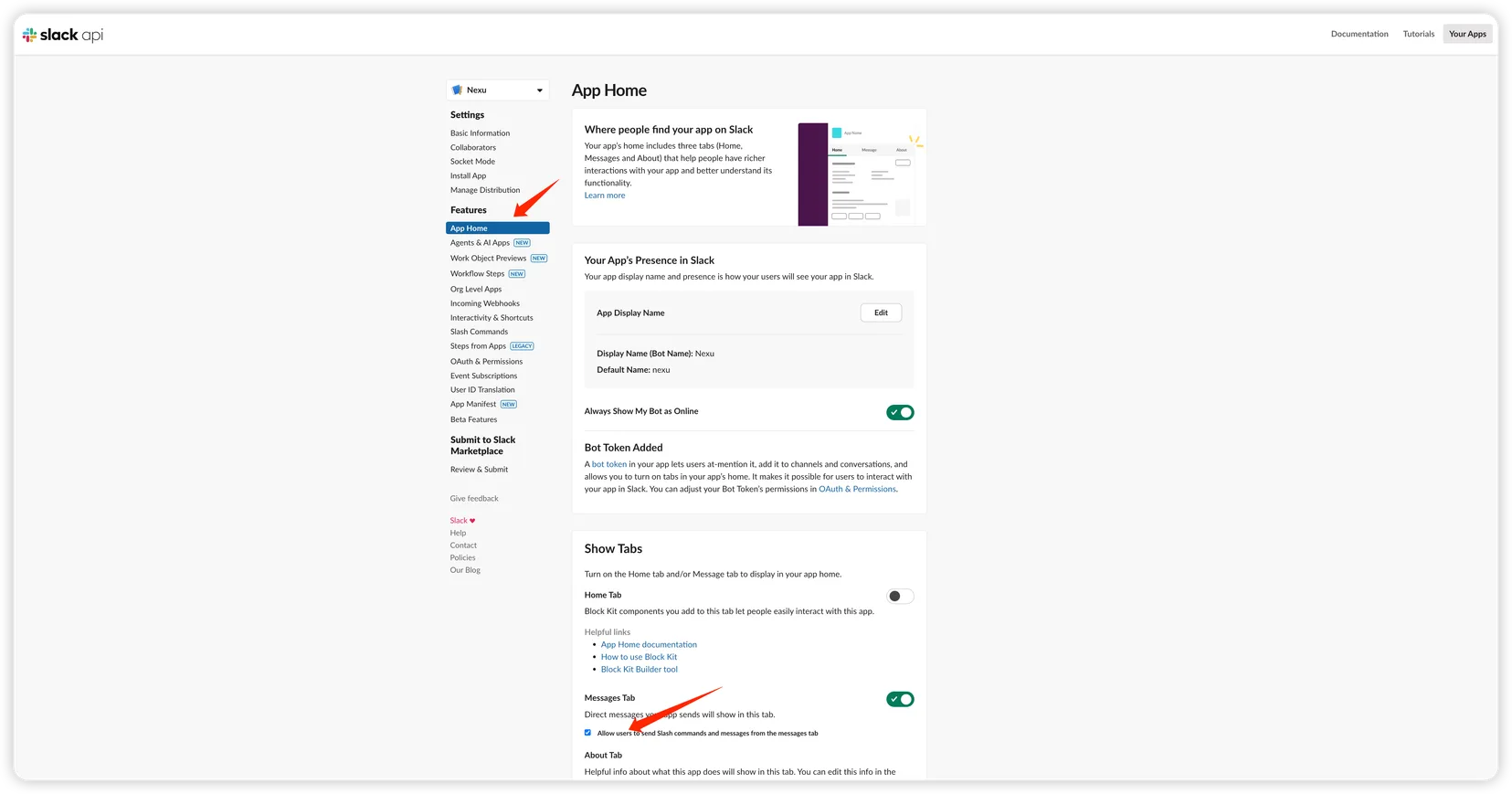
Step 4: Enable Direct Messages
In the sidebar, go to "App Home", scroll down to "Show Tabs" → "Messages Tab", make sure it's enabled, and check "Allow users to send Slash commands and messages from the messages tab".
Step 5: Add credentials to nexu
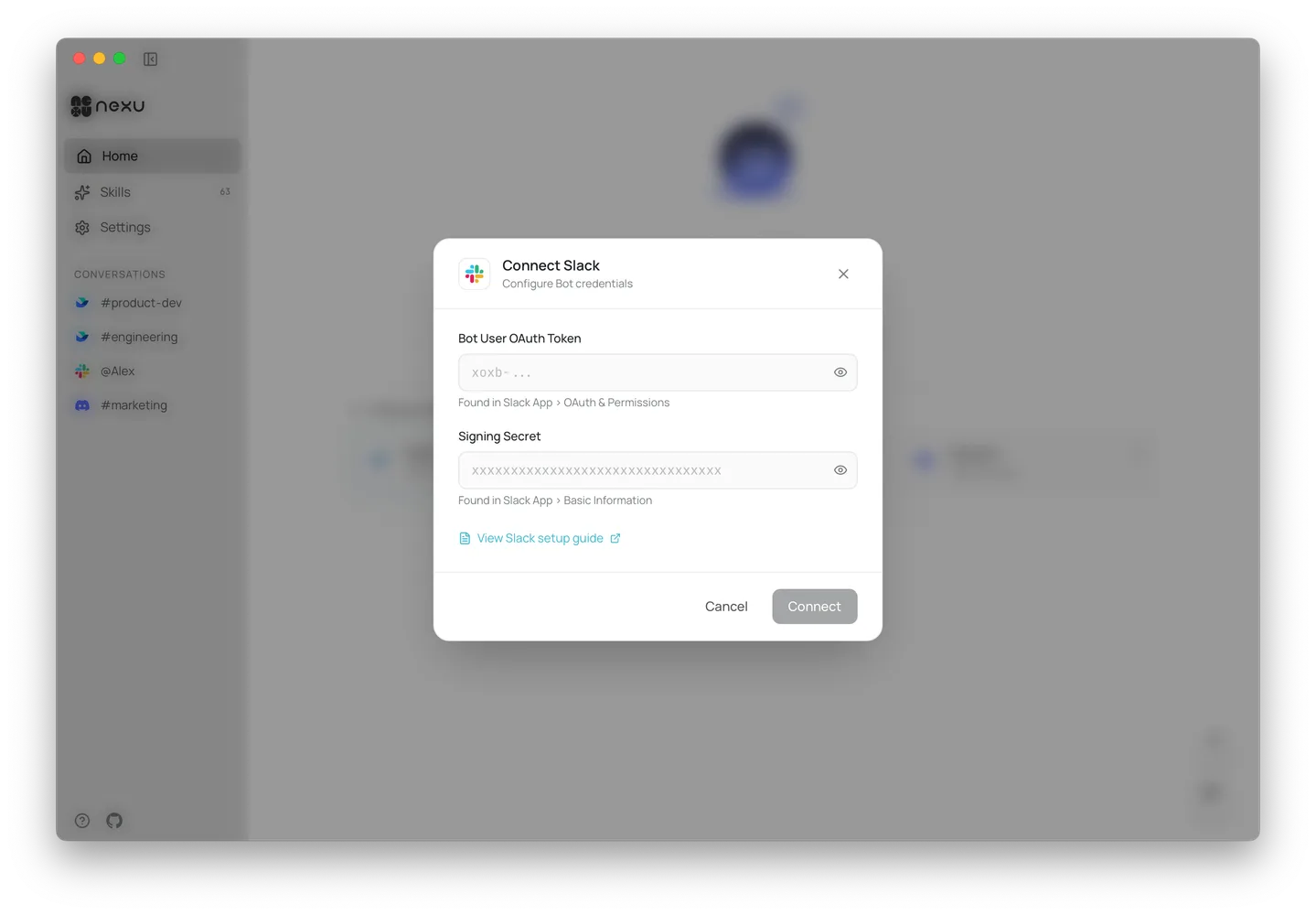
Open the nexu client, enter the Bot User OAuth Token and Signing Secret in the Slack channel settings, and click "Connect".
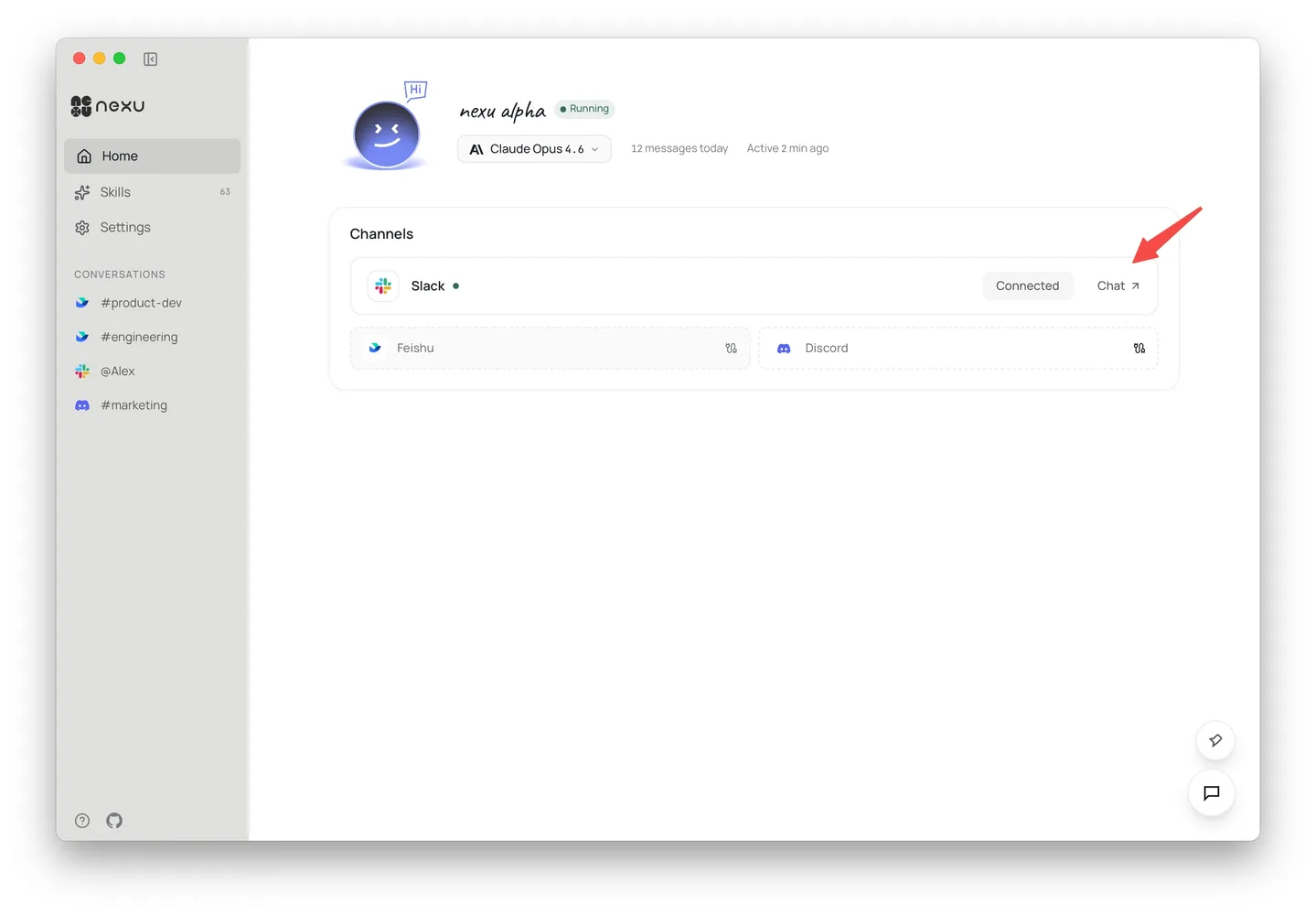
Once connected, click "Chat" to jump to Slack and chat with your bot 🎉
FAQ
Q: Do I need to configure permissions manually?
No. The app created via the link above comes with all permissions and event subscriptions pre-configured.
Q: Do I need a public server?
No. nexu handles event receiving automatically — no callback URL configuration needed.