

Skill Installation
Skills extend your Agent's capabilities — from web search and document generation to Lark Bitable operations and third-party API calls. Installing a skill takes just a few seconds.
Step 1: Open the Skills Page
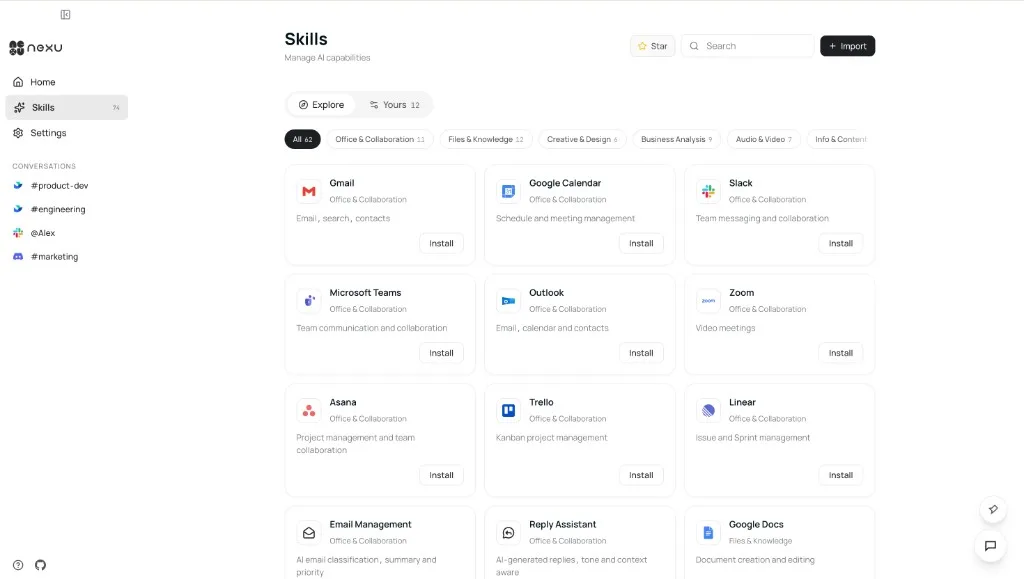
Click Skills in the left sidebar of the Nexu client to enter the Skill Hub.
The Explore tab shows all available public skills. You can filter by category (Office & Collaboration, Files & Knowledge, Creative & Design, Business Analysis, Audio & Video, etc.) or search by keyword.
Step 2: Find and Install a Skill
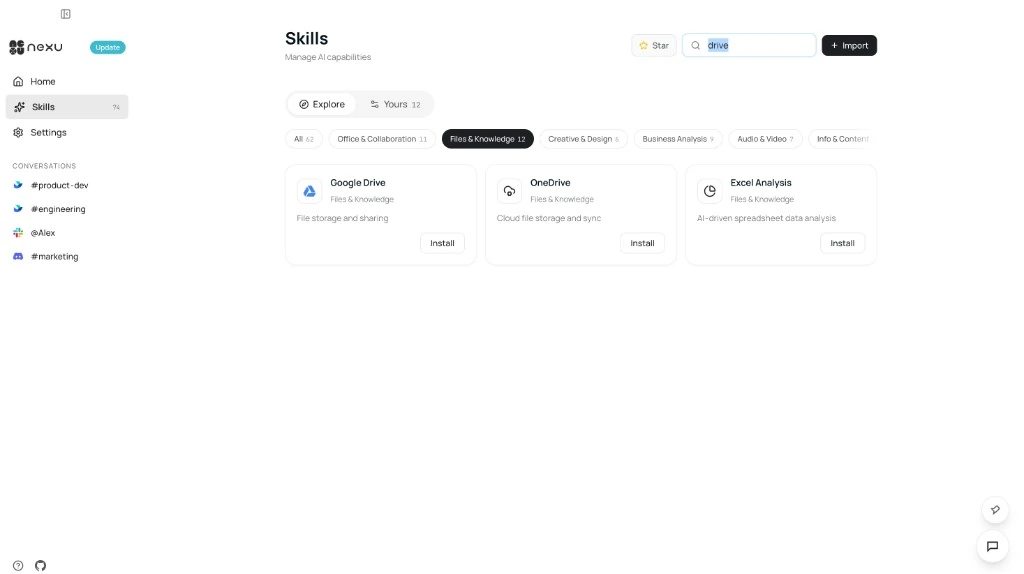
Browse or search for the skill you need, then click the Install button on the card. Skills support hot-loading — they take effect immediately without restarting the Agent.
Step 3: Confirm Installation
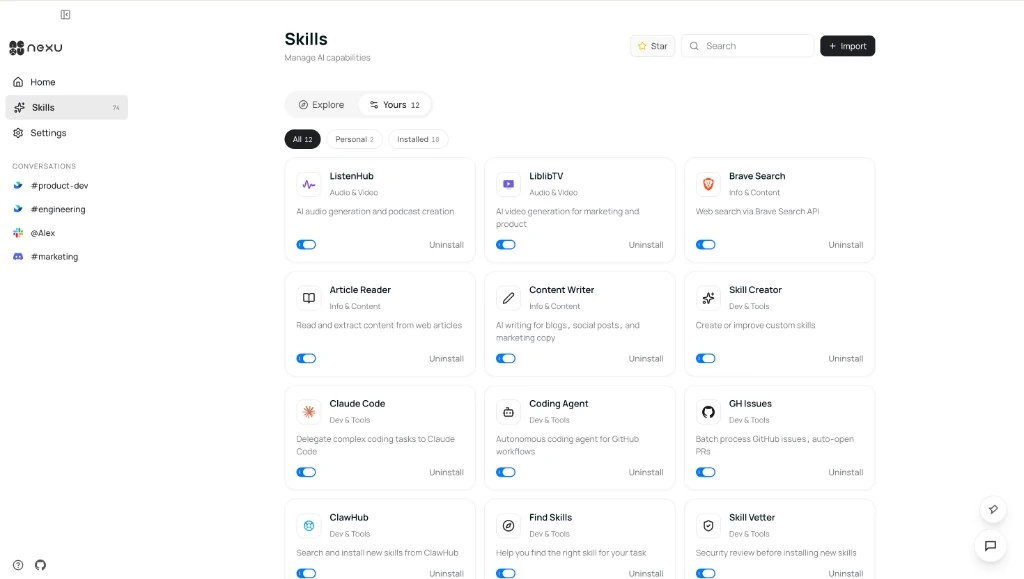
Switch to the Yours tab to see your installed skills. You can enable or disable individual skills at any time using the toggle.
Step 4: Use in Conversation
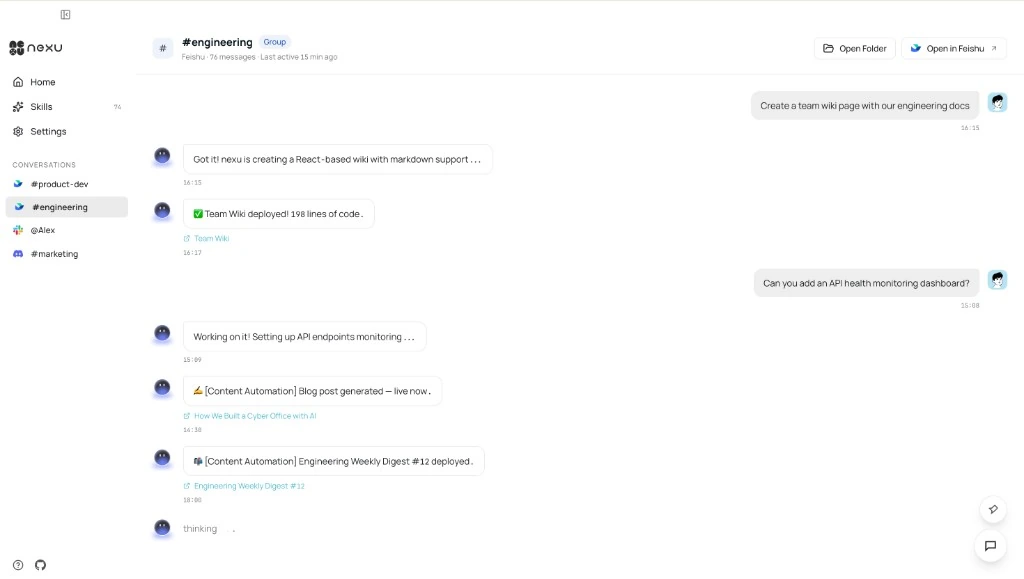
Once a skill is installed, simply describe what you need in a channel conversation — the Agent will automatically select the right skill to complete the task.
FAQ
Q: Do I need to restart the Agent after installing a skill?
No. Skills support hot-loading — the Agent will recognize and enable new skills immediately.
Q: Can I install skills outside the catalog?
Yes. Nexu supports local custom skill development for personalized needs. See the developer documentation for details.
Q: How do I uninstall a skill?
Go to the Yours tab and click Uninstall next to the skill you want to remove.